


Clip Studio Paint
CELSYS,Inc.
I approached Clip Studio Paint as a practical drawing and painting tool rather than a quick sketch app. Developed by CELSYS,Inc., it sits in the art and design category and is available for free, with optional in-app purchases ranging from $0.99 to $119.99 per item. My first impression was that it aims much higher than a basic finger-painting canvas: it is built for people who want to develop illustrations, comics, concept work, or a repeatable digital-art workflow on a mobile device.
That ambition is both its biggest strength and its main challenge. The app gives me room to work seriously, but it also asks me to learn where things are and how its tools fit together. If you want a simple app for adding a doodle to a photo, this may feel like too much. If you want an art workspace that can grow with your skills, it is much easier to recommend.
What to consider before choosing a mobile art app
My first decision criterion is control. A useful drawing app should let me make deliberate changes without fighting the interface. I look for dependable brush behavior, sensible layer handling, enough room to build an image gradually, and tools that support both rough ideas and polished work. Clip Studio Paint is strongest when I treat it as a workspace rather than a single-purpose brush pad.
The second criterion is learning time. A large toolset only helps if I can remember how to reach the tools I actually use. In my experience, the app rewards a patient first session. I would not judge it after opening a blank canvas and tapping randomly through every panel. I would create a small test illustration, try a few brushes, organize layers, undo mistakes, and save a reusable setup. That process reveals its value much faster.
The third criterion is the kind of art I make. Someone who mostly wants loose color studies may prefer a more minimal painting app. Someone working on line art, character illustrations, comics, or detailed digital pieces will probably appreciate a deeper environment. Clip Studio Paint makes more sense when the work has stages: sketching, refining, coloring, correcting, and preparing a finished image.
Latest News

Uber Eats Under Pressure: What Happens When Delivery Goes Wrong

How QR & Barcode Scanner Adapts to Android and iOS Innovations

Why Waze Navigation & Live Traffic Is Your Essential Travel Companion
CapCut Mastery: Unleash Hidden Features for Pro-Level Editing

How OS Updates Enhance Roblox Adventures
Teacher Simulator: Exam Time Turns Quick Classroom Judgments into a Repetitive Loop
I also consider whether I want to move from casual drawing to a more consistent practice. The app is suitable for a quick sketch during a commute, but its real appeal appears when I return to the same project repeatedly. I can think through composition, keep rough work separate from final marks, and revise without treating every correction as a destructive edit.
That distinction matters on a phone or tablet. A small screen can make detailed work tiring, and touch controls do not always provide the same confidence as a stylus. I found that the experience depends heavily on the device and the way I draw. The app is capable, but capability does not remove the physical limits of mobile drawing.
A serious workspace rather than a disposable sketchpad
The interface communicates that Clip Studio Paint is intended for more than occasional doodles. I can approach a project in layers, keep separate stages of the image under control, and use a combination of freehand drawing and editing tools. That makes it easier to experiment. I can test a color or line treatment without permanently damaging the underlying work.
Gallery
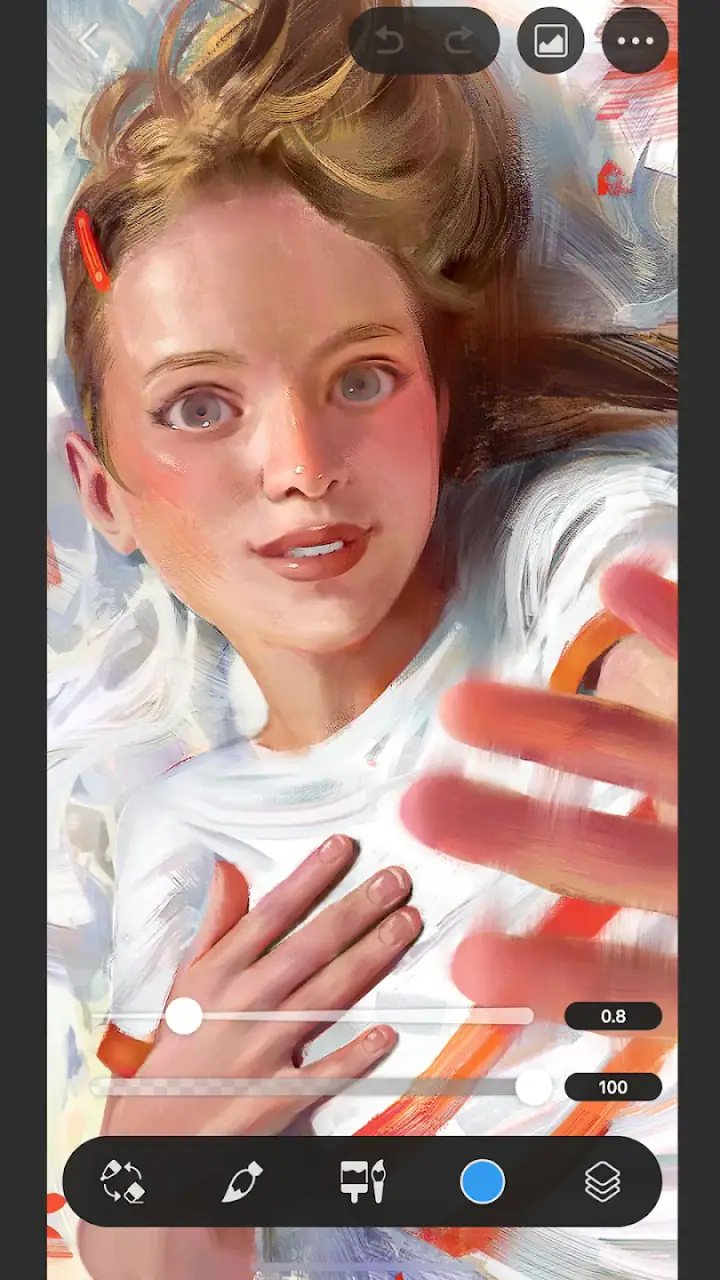
One useful habit is to separate the rough sketch from the cleaner drawing early. I lower the visual importance of the rough stage, create a new layer for the refined lines, and keep the original available for reference. This is a simple workflow, but it prevents the common problem of repeatedly erasing the construction that helped me draw accurately in the first place.
Another practical advantage is the ability to treat brush choice as part of the design process. I do not need one brush to do everything. A rough, textured tool can help me find shapes quickly, while a cleaner tool gives the final lines a more controlled appearance. Switching between those roles is more useful than searching for one supposedly perfect brush.
The app also suits artists who revise often. I can make a rough composition, notice that the subject is too close to the edge, and adjust the drawing before investing in details. That is a better workflow than polishing a weak arrangement and discovering the problem at the end. For me, the value lies less in any single button and more in how the tools support repeated correction.
The strongest reason to choose it is the freedom to build a non-destructive drawing routine. I can keep experiments, references, rough marks, and finished elements from becoming one tangled layer. That structure is especially helpful when I return to a project after a break and need to understand what I was doing.
Where it works especially well
Clip Studio Paint is a good match for character artists who move from pose ideas to clean line work and then into color. I can begin with a loose gesture, establish proportions, refine the silhouette, and work on color without losing the earlier stages. That sequence feels natural for illustrations where the drawing needs to remain editable for a long time.
It is also a strong choice for comic-style work. Even when I am only making a single panel, I benefit from thinking in terms of separate elements: rough layout, characters, background, lettering, and corrections. Keeping those parts distinct makes revisions less frustrating. If a background needs to change, I do not want to repaint the character at the same time.
For digital painting, I like the room to vary my approach. I can start with a broad block-in, move toward smaller marks, and use corrections when the image becomes muddy. The app does not force me to finish in one uninterrupted pass. That matters when I am learning, because I can compare an early stage with a later one and see where the image lost clarity.
A realistic everyday scenario would be preparing a small character illustration during several short sessions. On the first evening, I make a rough pose and decide on the composition. The next day, I refine the lines while keeping the sketch visible. Later, I test color on separate layers and return to the file to fix the face or hands. This is where the app feels more useful than a lightweight sketch tool: the project can survive interruptions.
It can also serve as a study tool. I might import or keep a visual reference nearby, sketch a simplified version, and then hide the reference while checking whether I understand the forms. The important point is to use references for observation rather than tracing blindly. The app gives me a place to repeat that exercise and compare attempts over time.
Small workflow choices that make a big difference
My first tip is to create a naming habit for layers. Names such as “rough,” “clean lines,” “flat color,” and “corrections” are much more useful than leaving a long stack of anonymous layers. This takes a few seconds at the beginning and saves much more time when I need to locate an element later.
My second tip is to keep a deliberately limited working brush set. A large selection can be inspiring, but it can also turn every mark into a decision about settings. I would choose a small group for sketching, line work, broad color, and texture, then expand only when the image demands it. This keeps the app from becoming a brush-browsing exercise.
My third tip is to zoom out regularly. Detailed mobile drawing encourages me to stare at a face, hand, or edge while losing sight of the whole image. I get better results when I alternate between close corrections and a distant view of the composition. A line that looks perfect up close may be too heavy or misplaced when the complete drawing is visible.
I also recommend saving checkpoints before major changes. When I am about to repaint a character, alter the palette, or make a broad correction, preserving the earlier state gives me a safe comparison. This is especially valuable while learning because it lets me make bold experiments without feeling that one mistake has ruined the project.
Where a simpler alternative may fit better
The usual alternatives in this category tend to fall into two groups: streamlined sketching apps and broader creative suites. A streamlined app may open faster, present fewer controls, and feel more comfortable for five-minute drawings. If my priority is speed and low friction, I may prefer that kind of experience over a deeper program.
A broader creative suite may be better when drawing is only one part of my work. If I need to combine artwork with layout, photo adjustments, typography, or other design tasks in one place, a general-purpose tool could reduce the need to move between applications. Clip Studio Paint is more focused on the art-making side, so it is not automatically the best center for every creative project.
I would also consider a different option if I mainly draw with one finger on a small phone. The app can still be useful for ideas, but detailed work may become uncomfortable. A simpler interface designed around quick touch gestures might feel more immediate. In that situation, the issue is not that Clip Studio Paint lacks ambition; it is that the device and working style may not suit the level of control the app encourages.
Beginners who feel overwhelmed should not assume they are incapable of using it. However, they should be honest about how much time they want to spend learning. If I want an app that explains itself almost instantly, this would not be my first recommendation. If I am willing to learn a repeatable workflow, the initial complexity becomes more manageable.
Free access, purchases, and the cost of switching
The free price makes it practical to try before committing. That matters because the right question is not simply whether the app has many tools; it is whether those tools fit my way of drawing. I would spend time making a small finished piece rather than only testing brushes. A real project exposes interface friction that a quick glance will miss.
Optional purchases range from $0.99 to $119.99 per item, so I would pay attention before buying anything. I would first identify the specific limitation affecting my workflow and decide whether a purchase solves that problem. Buying out of curiosity can leave me with more options but no clearer process.
The current version is 4.2.2, and the app has been available since December 4, 2020. Its scale is reflected in its audience: it has passed 10 million installs, with an average rating of 4.5 from around 32 thousand ratings and about 2.5 thousand written reviews. Those figures do not replace personal testing, but they do suggest that the app has reached well beyond a tiny specialist audience.
Moving from a simpler app has a real cost. I need to rebuild habits, learn where controls live, and decide how to organize projects. The benefit is that I may not need to change tools again as soon as my drawings become more demanding. In my view, that trade-off is worthwhile for a person who expects to keep improving, but not for someone who only wants occasional visual notes.
Moving away from Clip Studio Paint can also take effort if I have become comfortable with its layered workflow and brush behavior. Before switching, I would ask whether the problem is genuinely missing functionality or simply an interface I have not learned yet. If I only need a faster start, a simpler app may be better. If I need more control, switching may solve one frustration while creating another learning curve.
Who should use it, and who should skip it?
I would recommend it to an aspiring illustrator who wants one serious place to practice. It is also a good fit for comic artists, character designers, and hobbyists who enjoy refining work over multiple sessions. The app makes the most sense for people who value editable stages and are prepared to develop a personal system for layers, brushes, and revisions.
I would be more cautious about recommending it to someone who only wants quick filters, basic photo decoration, or a very simple coloring experience. Those users may spend more time navigating the workspace than enjoying the activity. A focused alternative would probably feel better and produce less friction.
It is rated for Everyone, which makes it broadly accessible from an age-rating perspective. That does not mean every feature will feel simple to every user. A young or completely new artist may still benefit from an introduction to layers and brush settings before attempting a large project.
For me, the deciding question is whether I want a drawing app or a drawing practice environment. Clip Studio Paint is closer to the second. It supports the habits that make digital art easier to revise, but it expects me to participate in that process instead of doing all the organizing for me.
My recommendation after using it
I recommend Clip Studio Paint for artists who want room to grow and who are willing to spend a little time learning the workspace. Its free entry point makes trying it sensible, while the optional purchases mean I would approach upgrades carefully and only after identifying a real need. I would start with a small illustration, organize the file clearly, and judge the app by the complete workflow rather than by the number of tools on screen.
I would not call it the easiest art app for a first five-minute doodle, and I would not choose it automatically for mixed media design or quick photo work. But for drawing and painting that develops through sketches, layers, corrections, and repeated sessions, it gives me a stronger foundation than a minimal sketchpad.
My final advice is simple: try it if you want to become more deliberate about digital art. Keep your first project modest, limit your brush choices, name your layers, and save before major changes. If that process feels satisfying, this app can become a dependable part of your creative routine. If it feels like unnecessary administration around a simple hobby, a lighter alternative will probably serve you better.
Overall, CELSYS,Inc. has made an ambitious art and design app that rewards commitment without requiring a professional identity. For anyone looking for a free starting point with serious creative headroom, it is one of the more convincing choices I would suggest to a friend.
FAQs for Clip Studio Paint
What is Clip Studio Paint and what platforms is it available on?
Clip Studio Paint is a versatile digital painting app designed for artists who want to create illustrations, comics, and animations. It's known for its robust features and user-friendly interface. The app is available on multiple platforms, including Windows, macOS, iOS, Android, and Chromebook, making it accessible to a wide range of users.
Is Clip Studio Paint suitable for beginners?
Yes, Clip Studio Paint is suitable for beginners as well as professional artists. It offers a range of tutorials and a user-friendly interface that makes it easier for newcomers to get started. Additionally, the app provides customizable brushes and tools that beginners can explore and adapt to their skill level, allowing them to grow and improve over time.
What are the unique features of Clip Studio Paint?
Clip Studio Paint boasts unique features such as a vast library of customizable brushes, 3D models to assist with complex angles, and a vector toolkit for precise line art. It also supports animation features, making it a comprehensive tool for both illustrators and animators. The app's robust layer management and coloring tools further enhance its versatility.
Does Clip Studio Paint require a subscription, and what are the pricing options?
Clip Studio Paint offers both one-time purchase and subscription options. Users can choose a perpetual license for a single payment or opt for a subscription plan that provides regular updates and access across multiple devices. The app offers a free trial, allowing users to explore its features before committing to a purchase.
How does Clip Studio Paint compare to other digital art apps?
Clip Studio Paint is often favored for its advanced features tailored for comic and manga artists, setting it apart from other digital art apps. Compared to competitors like Adobe Photoshop and Procreate, it offers specialized tools, particularly for line art and animation. Its affordability and flexibility in pricing also make it a popular choice among artists.
Pros
- Versatile tools for digital art creation.
- Highly customizable user interface.
- Cross-platform compatibility.
- Frequent updates with new features.
- Strong community support and resources.
Cons
- Subscription model might deter some users.
- Steep learning curve for beginners.
- Mobile version lacks some desktop features.
- High resource consumption on older devices.
- Limited free trial duration.


